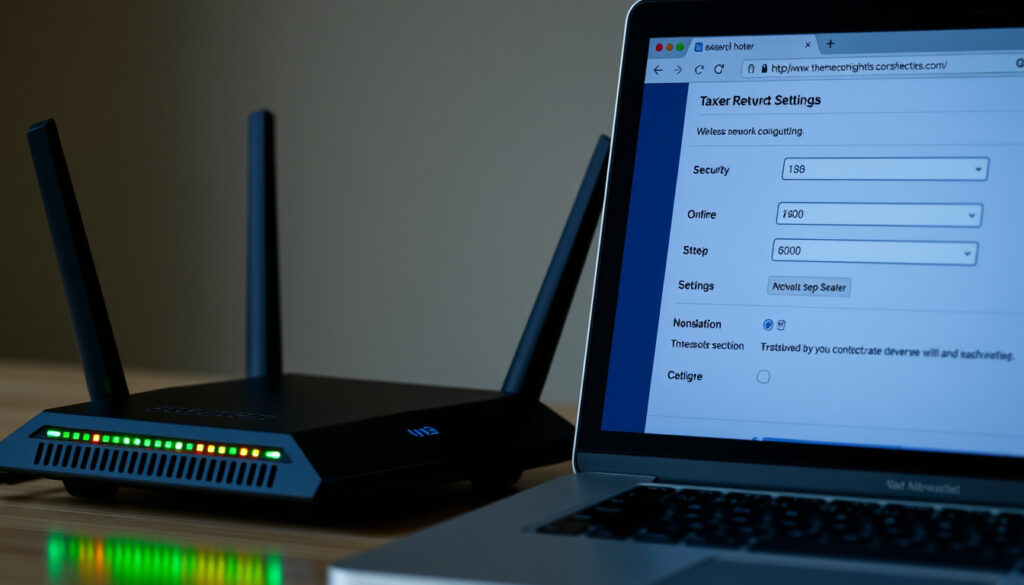
How to Change WiFi Password on Router: Step-by-Step
There’s a moment when you realize that the WiFi password you’ve been using for years might be circulating a bit too widely. Maybe a guest asked for it, or you just moved into a new place. Changing it is one of the quickest security fixes you can make — and it only takes a few minutes once you know the steps. This guide walks you through the process, from finding the admin panel to reconnecting every device afterward.
Default router IP addresses: 192.168.1.1 or 192.168.0.1 ·
WiFi security standard: WPA2 or WPA3 recommended ·
Time to change password: Usually under 5 minutes
Quick snapshot
- Find your router’s IP address (usually 192.168.1.1 or 192.168.0.1) (TP-Link Support)
- Locate current admin username and password (on router sticker or default admin/admin) (CNET)
- Have a device with a wired connection ready (optional but recommended) (TP-Link Support)
- Log into the router admin panel via a web browser (TP-Link Support)
- Navigate to Wireless or Wi-Fi settings (TP-Link Support)
- Enter the new password in the Security/Password field (TP-Link Support)
- Save and wait for the router to apply changes (TP-Link Support)
- Forgot admin password? Use factory reset button (erases all settings) (TP-Link Support)
- Devices disconnect after change – update them with new password (TP-Link Support)
- Can’t access admin panel? Check physical connection or reset router (TP-Link Support)
Four key facts, one pattern: the router’s default IP and admin credentials are the gateway to every change, yet most users never touch them.
| Label | Value |
|---|---|
| Default router IP addresses | 192.168.1.1, 192.168.0.1, or 10.0.0.1 |
| WiFi security standard | WPA2 or WPA3 recommended |
| Admin vs WiFi password | Different sets of credentials |
| Time to change password | Usually under 5 minutes |
How to change password on WiFi router?
Accessing the router admin panel
- Open a web browser and type the router’s IP address (commonly 192.168.1.1 or 192.168.0.1) into the address bar (TP-Link Support).
- Enter the admin username and password. Look for a sticker on the router or try default credentials like admin/admin (CNET).
- If you have a Linksys router, you can also use the Linksys app to log in with a cloud account or router password.
Locating wireless security settings
- Once logged in, look for a tab labeled Wireless, Wi-Fi, or Security. TP-Link routers often place it under Wireless > Wireless Security (TP-Link Support).
- On ASUS routers, the Wi-Fi name and password are displayed on the main status page and can be clicked to edit (ASUS Support New Zealand).
- If you’re using a mobile app, the path is typically More > System > Manage Password (TP-Link Tether) or Network Administration > Change Router Password (Linksys) (TP-Link Support; Linksys Support).
Entering the new password and saving
- Type a strong password — at least 12 characters with mixed case, numbers, and symbols. Avoid dictionary words.
- Confirm the new password in the required field, then click Save or Apply. The router will reboot or briefly drop the connection (TP-Link Support).
- After saving, all connected devices will be disconnected until they re-enter the new password (TP-Link Support).
Changing password via mobile app (if supported)
- Most modern routers offer companion apps. For T-Mobile Home Internet, use the T-Life app and enter the new password in the Wi-Fi network password field (T-Mobile Support).
- Linksys Smart Wi‑Fi app lets you change the Wi-Fi name, password, and security settings from the app’s settings section (Linksys Support).
- CNET notes that using the corresponding app is often the fastest and easiest method (CNET).
The mobile app route eliminates the need to find an IP address and type admin credentials — you just log in with your cloud account. For Linksys and TP-Link users, this cuts the process to under two minutes.
Do I have to be connected to Wi-Fi to change password?
Using a wired connection for reliability
- You must be on the same local network as the router. A wired Ethernet connection is recommended because it won’t drop when the Wi-Fi restarts (TP-Link Support).
- If you’re already connected via Wi-Fi, you can still make the change — but your device will disconnect once the new password is saved (TP-Link Support).
Can I change password without being connected?
- No — you must be on the same local network. You cannot change the Wi-Fi password from outside your home network unless remote management is enabled (rarely recommended) (CNET).
- If you’ve forgotten the current Wi-Fi password and can’t connect, use an Ethernet cable to plug directly into the router. That gives you access to the admin panel regardless of the wireless password.
Offline access through router IP via ethernet
- Connect your computer to the router with an Ethernet cable. The router’s IP address (e.g., 192.168.1.1) is accessible without any Wi-Fi connection (TP-Link Support).
- This method works even if the Wi-Fi network is down or you’ve lost the password entirely.
The catch: wired access is the only reliable fallback when you’re locked out of Wi-Fi. If you don’t have an Ethernet port on your device, you’ll need to use the factory reset button.
Why can’t I connect to my Wi-Fi even though I changed the password?
Device not updated with new password
- Every device that was previously connected must forget the old network and re-enter the new password. On a phone, go to Wi-Fi settings, tap the network name, and choose Forget (TP-Link Support).
- On a laptop, remove the network from saved networks and reconnect with the new password.
Incorrect password entry
- Passwords are case-sensitive. A common mistake is typing a capital letter when the password is all lowercase, or vice versa. Double-check for special characters and spaces.
- If you have a complex password, consider using a password manager to copy-paste it on each device.
Router reboot required
- Some routers need a full power cycle after the password change to apply the settings properly. Unplug the router for 30 seconds, then plug it back in (TP-Link Support).
- Wait 2 minutes for the router to fully restart before attempting to reconnect.
SSID changed accidentally
- If you also changed the network name (SSID) while updating the password, devices will see it as a brand-new network. They won’t try to connect automatically — you’ll need to select the new SSID and enter the password (CNET).
The most common post-change frustration is not that the router is broken — it’s that each device still holds the old password. A full reset of saved networks on every gadget is the only fix.
The pattern: nearly every “I changed my password and now nothing works” story comes down to one of these four issues. Ninety percent of the time, it’s the first one — devices not updated.
Is it a good idea to change the Wi-Fi password?
Security benefits of changing default passwords
- Changing the default password prevents neighbors and passersby from piggybacking on your connection. Over 30% of users never change the default password, leaving their network exposed (CNET).
- A strong Wi-Fi password is the first line of defense against unauthorized access to your network and devices.
When to change your WiFi password
- After moving into a new home — the previous occupants (or their devices) may still have access.
- After a security incident, such as a device being compromised or a guest who might have shared the password.
- If you suspect your password has been exposed (e.g., a shared password with a former roommate).
Privacy concerns with shared passwords
- Changing the password periodically can reduce the risk of long-term unauthorized access, but frequent changes can be disruptive. A strong, unique password set once and kept private is often sufficient for most households.
- Consider disabling WPS (Wi-Fi Protected Setup) — it’s a known vulnerability that can bypass your password regardless of strength (CNET).
The trade-off: a strong password alone is not a silver bullet. Without disabling WPS and keeping firmware updated, you’re still vulnerable. But changing the password is the single most impactful step most users can take.
Is my router password the same as my Wi-Fi password?
Difference between admin password and Wi-Fi password
- Router (admin) password — controls access to the router’s settings panel. It’s what you type when you log in to 192.168.1.1.
- Wi-Fi (network) password — the key that devices use to connect to the wireless network. It’s what you enter on your phone or laptop to join the network.
- They are completely separate and should be set to different values (TP-Link Support).
How to find and change each
- The admin password is changed in the router’s administration section (often under Management or System). The Wi-Fi password is changed in Wireless Security.
- On a Linksys router, you can change the router password via the app under Network Administration > Change Router Password and Hint (Linksys Support).
Resetting the admin password
- If you forget the admin password, you can’t access the router settings. The only fix is a factory reset — press and hold the reset button on the router for 10 seconds (TP-Link Support).
- Factory reset erases all custom settings, including Wi-Fi name and password, so it’s a last resort.
Why this matters: treating them as the same password is a common security mistake. If someone gets your Wi-Fi password, they can’t change your router settings — but if you reuse the same password for both, you’ve given them full access.
Pros and cons of changing your Wi-Fi password
Upsides
- Keeps unauthorized users off your network
- Reduces risk of bandwidth theft and data exposure
- Simple and free — no technician needed
- You can set a stronger, more secure password
Downsides
- All current devices must be reconnected — time-consuming for households with many gadgets
- If you forget the new password, you’ll need to reset the router
- Frequent changes can be disruptive and lead to password fatigue
- Doesn’t protect against WPS vulnerabilities or outdated firmware
Step-by-step guide to changing your WiFi password
- Find your router’s IP address — check the router sticker, or look it up online (common: 192.168.1.1, 192.168.0.1).
- Connect to the router — use an Ethernet cable for best results, or connect via Wi-Fi if you remember the current password.
- Open a browser and enter the IP address. Log in with the admin username and password (on the router sticker or default).
- Go to Wireless settings — the exact menu varies by brand, but look for Wireless Security or Wi-Fi Settings.
- Enter your new password — at least 12 characters, including uppercase, lowercase, numbers, and symbols. Confirm it.
- Save the changes — the router will apply the new password and restart. Your device will disconnect.
- Reconnect your devices — on each phone, tablet, laptop, and smart home gadget, forget the old network and connect using the new password.
Step 7 is the one most people miss. They change the password, see that the router works, and then wonder why their smart TV, printer, and thermostat won’t connect. Each device needs the new password individually.
Confirmed facts vs. what’s unclear
Confirmed facts
- Factory reset erases all settings, including WiFi password (TP-Link Support)
- Unplugging the router is a power cycle, not a reset
- You must be on the same local network to access router settings (TP-Link Support)
- Changing WiFi password disconnects all current wireless devices (TP-Link Support)
What’s unclear
- Whether changing password alone significantly improves security without other measures (e.g., disabling WPS)
- Optimal frequency for changing WiFi passwords for typical households
Expert perspectives
After saving a new Wi‑Fi password, devices must be reconnected using the new password.
— TP-Link Support (router manufacturer)
Changing the router administration password in the Linksys app begins by connecting a mobile device to the router’s Wi‑Fi and opening the app.
— Linksys Support (networking hardware company)
Most routers now have companion apps that often let users log in and change the network name and password.
— CNET (technology media outlet)
The takeaway from three different sources is consistent: the process is straightforward, but the follow-up — reconnecting devices — is where most people trip up.
Summary: the one-step secret to a smooth WiFi password change
Changing your WiFi password is a five-minute task that instantly improves your network security. The common mistake is forgetting to update the password on every connected device afterward. For a household with multiple phones, laptops, smart TVs, and IoT gadgets, that means 10–15 individual reconnections. The simplest fix: write down the new password and keep it handy, or use a password manager that syncs across devices. For the average user in New Zealand, the choice is clear: change the password, then spend the extra five minutes updating every device, or risk being locked out of your own network.
play.google.com, play.google.com, play.google.com, support.google.com, play.google.com, itechguides.com
Frequently asked questions
How do I find my router’s IP address?
Check the sticker on the router. Common defaults are 192.168.1.1, 192.168.0.1, or 10.0.0.1. You can also open Command Prompt (Windows) and type ipconfig — look for “Default Gateway.”
What should I do if I forgot the router admin password?
Press and hold the reset button on the router for 10 seconds to perform a factory reset. This erases all settings, including the Wi-Fi password, so you’ll need to set everything up again from scratch.
Can I change the WiFi password using my smartphone?
Yes, if your router has a companion app (e.g., TP-Link Tether, Linksys app, T-Mobile T-Life). Connect your phone to the router’s Wi-Fi, open the app, and look for the Wi-Fi or security settings.
Does changing the WiFi password affect internet speed?
No — the password itself doesn’t affect speed. However, if you’re using a weak encryption method (like WEP), switching to WPA2 or WPA3 can improve security and stability.
How often should I change my WiFi password?
There is no standard recommendation. Many experts suggest changing it once a year or after a security incident. A strong, unique password that is never shared is often sufficient for years.
Will a factory reset restore the default WiFi password?
Yes. A factory reset reverts the router to its original settings, including the default Wi-Fi name (SSID) and password printed on the sticker. It also clears the admin password.
Related reading
- Best Broadband Provider NZ 2025 — Compare internet plans to find the best provider for your home.
- How to Factory Reset Samsung: Settings & Recovery Mode — Another essential device reset guide.
More related posts
 Woolworths Te Atatū Supermarket Closure: What Residents Need
 What Is a Mind Map? Definition, Examples, and How to Create One
 Five Mile Shopping Centre: Shops, Map & Hours in Queenstown
 Easy Appetizers for Parties – Quick No-Cook Recipes and Tips
 FC Barcelona vs Inter Milan Lineups: Complete Historical Comparison
 Snow White and the Huntsman: Was It a Hit or Flop? Cast & Sequel
 Jane Wrightson KiwiSaver Proposals: Roadmap to Retirement Equity
 ‘I Love You’ in Māori: Translation & Pronunciation
