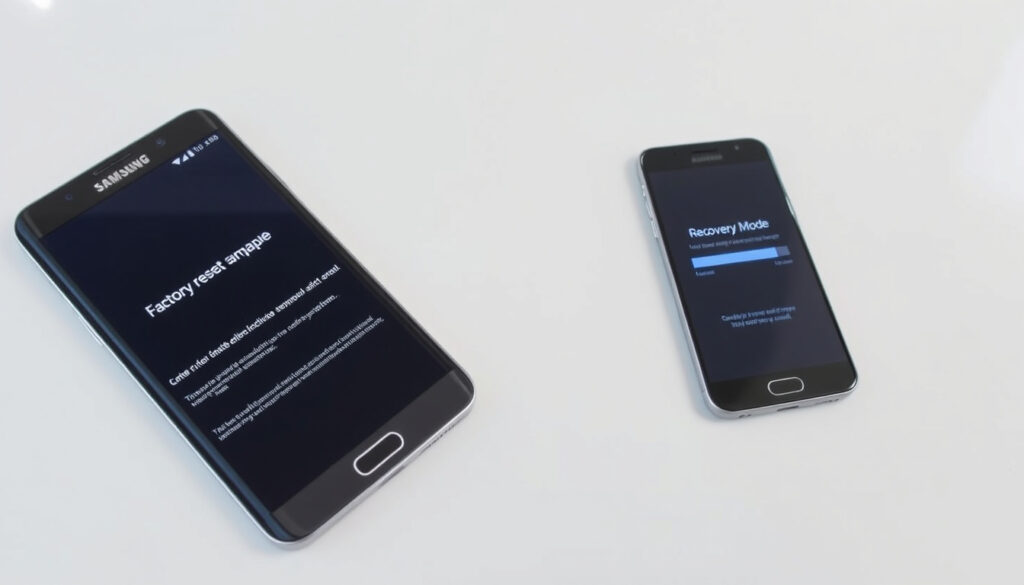
How to Factory Reset Samsung: Settings & Recovery Mode
There’s a sinking feeling when you realize you can’t get into your own phone — whether it’s a forgotten PIN, a pattern your fingers just won’t replay, or a device acting so strangely you’d rather start clean, the factory reset is your ultimate escape hatch. This guide walks you through every official method — Settings, recovery mode, and remote options — so you can wipe your Samsung Galaxy and start over, no matter how locked out you feel.
Devices covered: All Samsung Galaxy phones and tablets ·
Data deletion: 100% of user data and settings ·
Reset methods: Settings menu and hardware key combination ·
Common trigger: Forgotten password or performance issues ·
Recommended backup: Before proceeding
Quick snapshot
- Factory reset erases all user data and settings (Samsung UK Support (official device guidance))
- Samsung recovery mode can be accessed with Power + Volume Up on most models (AT&T Device Support – Galaxy Z Fold5) (Samsung UK Support (official device guidance))
- Backing up data is strongly recommended before reset (Samsung India Support (regional service page))
- Exact key combination may vary slightly by model (e.g., Volume Down instead of Up) (AT&T Device Support (carrier guide))
- Whether Find My Mobile remote reset works if device is not connected to the internet (Samsung Thailand (remote device management))
- Whether a PC connection is required for recovery mode on some Samsung devices (AppGeeker (third-party unlock guide))
- Samsung India support page published 2026-07-10, last updated 2026-08-22 (Samsung India Support) (AT&T Device Support (carrier guide))
- AT&T Galaxy Z Fold5 recovery guide last updated 2026-08-22 (AT&T Device Support (carrier guide))
- Samsung UK factory-reset guidance dated 2026-05-14 (Samsung UK Support) (AT&T Device Support (carrier guide))
- Use the Settings method if you can unlock the device (Android.com)
- Use Recovery Mode if password is forgotten and device is accessible (Samsung UK Support)
The table below summarises the key decisions when choosing a reset method.
| Attribute | Value |
|---|---|
| Reset methods available | 2 |
| Password required for Settings method | Yes |
| Password required for Recovery method | No |
| Data erased permanently | Yes |
How do I factory reset my Samsung phone?
Step-by-step via Settings
- Open Settings > General Management > Reset > Factory data reset (Samsung UK Support)
- Requires device to be unlocked and passcode entered (Samsung UK Support)
- Backup data before proceeding — the reset erases everything (Samsung India Support)
This is the simplest path. Navigate through the menus, tap Reset, confirm your PIN or pattern, and the phone starts erasing. Samsung recommends backing up to your Samsung account or Google Drive (official support guidance) before you tap the final confirmation.
Alternative: Recovery mode
- Power off the device completely (Samsung UK Support)
- Press and hold Volume Up + Power key simultaneously (Samsung UK Support)
- Navigate using volume keys; select Wipe data/factory reset (Samsung UK Support)
- Works even when device is locked or password forgotten (Samsung UK Support)
Older Galaxy models, like those running Android 10 and earlier, may require a different combo. Samsung South Africa notes that some devices use Volume Up + Home + Power to enter the reset flow (Samsung South Africa Support). And AT&T’s guide for the Galaxy A56 5G shows a variant: Power + Volume Down to power off, then Volume Up + Power to enter recovery (AT&T Device Support).
Samsung owners who can unlock their phone should stick with the Settings menu — it’s safe and straightforward. Anyone locked out faces a hardware-key workaround that cleans the device but demands patience and steady hands.
The pattern: your access to the screen determines the best reset path – Settings for unlocked devices, recovery mode for locked ones.
How to factory reset Samsung if forgot password?
Using Recovery Mode without password
- Power off the device completely (Samsung UK Support)
- Press and hold Volume Up + Power until recovery menu appears (Samsung UK Support)
- Use volume keys to select Wipe data/factory reset, then press Power to confirm (Samsung UK Support)
- Reboot the device after the wipe completes (Samsung UK Support)
This is the method most locked-out owners find first — and it works. Recovery mode does not ask for your PIN or pattern. It jumps straight to the erase screen. Samsung UK support describes a two-step confirmation on some devices: first Wipe data/factory reset, then Factory data reset (Samsung UK Support).
A third-party Android unlock guide reports that since Android 11, some Samsung phones require connection to a PC before recovery mode loads (AppGeeker third-party unlock guide). This is not confirmed by Samsung but is worth a test.
Using Find My Mobile (Samsung account)
- Requires the phone to be associated with a Samsung account (Samsung Thailand)
- Log in at findmymobile.samsung.com and select the device (Samsung India Support)
- Choose the Erase data option to wipe the device remotely (Samsung India Support)
- Works without entering the screen password (Samsung Thailand)
Samsung India’s support page, published 2026-07-10 and updated 2026-08-22, points to SmartThings Find (formerly Find My Mobile) as the remote reset path (Samsung India Support). This method requires the phone to have an active internet connection and be registered to your Samsung account. Samsung Thailand also mentions Android Device Manager as an alternative remote-reset route using a Google account (Samsung Thailand).
Remote erase works only if the device is online and you previously logged into a Samsung or Google account on it. If the phone has never been associated with an account, recovery mode remains your only path.
What is a master reset on Samsung?
Difference between hard reset and factory reset
- Master reset is another term for factory data reset (Samsung UK Support)
- A hard reset is a forced restart, not a data wipe (Lifewire (editorial technology explainer))
- Master reset erases all user data and returns device to out-of-box state (Android.com (official Android reset guidance))
Samsung’s own support pages use the term “factory reset” and “master reset” interchangeably. The effect is identical: every user-installed app, saved file, account credential, and setting is erased. A hard reset — pressing and holding Power for 10+ seconds — merely restarts the phone without wiping anything (Lifewire). Confusing the two can cost you a day of frustration or, worse, the mistaken belief that you’ve wiped a stolen device.
The implication: if you hear “master reset” from a support agent or forum post, expect a full data wipe — and back up everything before proceeding.
When to use master reset
- Device is slow, crashing, or infected with malware (Samsung UK Support)
- You’re selling or giving away the phone (Samsung UK Support)
- Forgotten lock screen credentials — use Recovery Mode or Find My Mobile (Samsung UK Support)
Recovery-mode reset erases user data, so treat it as a last resort when the password is forgotten (Samsung UK Support). For malware-infected devices, the master reset wipes the infection but also any cryptocurrency wallets or two-factor authenticator apps you forgot to back up.
Samsung’s policy is clear: remote erase via Find My Mobile requires an active Samsung account association, and remote wipe via Android Device Manager requires a Google account on the device (Samsung Thailand). If you have both accounts set up, you have two remote paths. If neither is set up, recovery mode is your only door.
The pattern: the availability of remote erase hinges entirely on account registration; without it, recovery mode becomes the singular fallback.
“Backing up your data before a factory reset is critical. Once the reset completes, all personal files, contacts, and settings are permanently erased.”
Samsung Support — Samsung India Support (regional service page)
“A hard reset is just a forced restart. It does not erase your data. A factory reset wipes everything. Don’t confuse the two.”
Lifewire Editorial — Lifewire (editorial technology explainer)
For any Samsung owner facing the reset decision, the choice is clear: if you can unlock the phone, the Settings method is safest. If you’re locked out, recovery mode works — but check your model’s key combination first. And if you’ve got a Samsung account set up, the remote erase option is your best bet for a password-free wipe. Without those accounts, you’re looking at a recovery-mode reset that wipes everything, including any hope of recovering data afterward.
reddit.com, samsung.com, samsung.com, samsung.com, att.com, att.com, youtube.com
Frequently asked questions
Will factory reset remove my Google account and FRP lock?
No. Factory Reset Protection (FRP) is tied to your Google account. Even after a factory reset, you’ll need to enter the last Google account used on the device to bypass the lock screen (Android.com). This is a security feature, not a bug.
How long does a Samsung factory reset take?
Between 5 and 15 minutes on most Samsung Galaxy devices (Samsung UK Support). The process includes formatting internal storage and rebooting.
Can I recover data after a factory reset?
No. A factory reset permanently deletes all user data by overwriting the storage partition (Android.com). Recovery is extremely unlikely without prior backup.
What is the difference between a factory reset and a force restart?
A force restart (hard reset) simply reboots the phone by holding Power for 10+ seconds. A factory reset wipes all data and settings (Lifewire). They are not interchangeable.
Does factory reset remove malware?
Yes. A factory reset removes most malware by wiping the data partition. But persistent firmware-level threats may survive, though such infections are rare (Android.com).
Will factory reset delete my SD card data?
No. The factory reset erases only internal storage. Your SD card remains untouched unless you explicitly format it (Samsung UK Support).
Can I cancel a factory reset once it starts?
No. Once the reset process begins, it cannot be undone. The phone will erase all data and reboot (Samsung UK Support).
More related posts
 Can Body Wash Be Used as Hand Wash? Facts & Tips
 Flooding in Auckland Today: Official Alerts and Safety Advice
 Iron Lung Box Office: Success, Budget, and Profit Analysis
 When Is the Full Moon? 2026 Calendar & Phases (Dublin)
 Foods High in Protein: Best Sources, Vegetables, & Drinks
 6 Feet in CM: Exact 182.88 cm Conversion & Height Data
 How Do You Get Ringworm – Causes, Transmission and Prevention
 Financial Markets Conduct Act 2013 Guide: Key Points
